
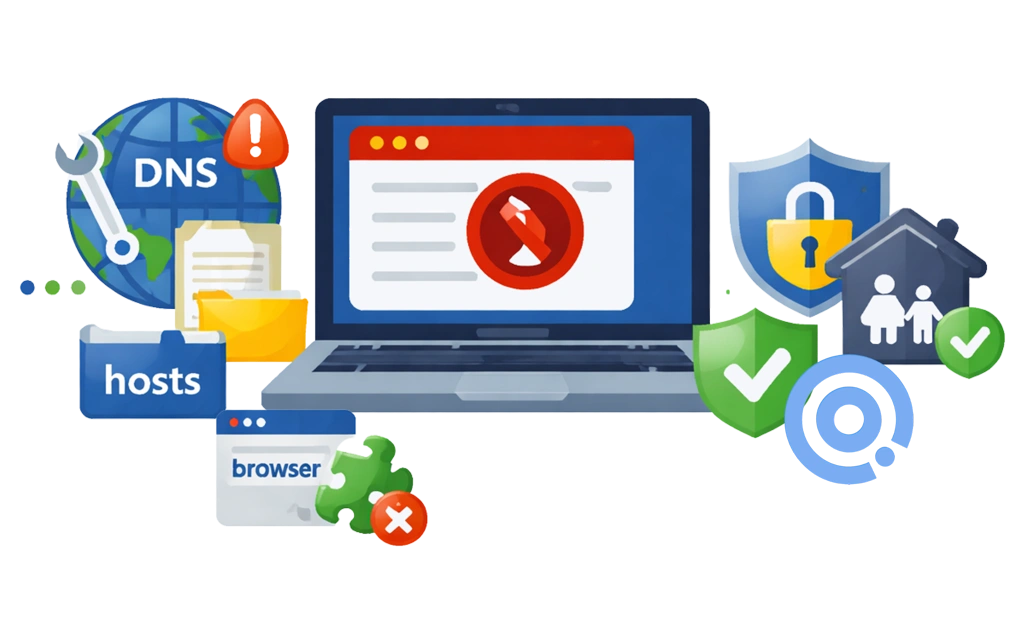
Blocking adult content on Windows works best in layers. DNS filtering, the hosts file, browser extensions, and system-level blockers like DigitalZen each close a different gap. Most people setting this up are blocking content for themselves, and that changes what matters.
You hold administrator rights on your own machine, so the real question is not only what blocks the site. It is what makes the block harder to remove an hour later.
Key Takeaways
- DNS filtering is a free starting point for blocking adult content on Windows: It works across every browser and many apps at no cost, and it can be changed back by anyone with access to the settings, including you.
- The hosts file blocks specific domains system-wide, but it is hard to maintain: It needs manual updates, and anyone with admin rights can edit it back quickly.
- Browser extensions are a light extra layer: They cover one browser at a time and are quick to disable or remove.
- Microsoft Family Safety is built around child accounts and only filters web content in Edge: It is a supervision tool, so it is a poor fit for an adult blocking content on their own machine.
- System-level tools like DigitalZen add protection against tampering, then locks on top: The filter runs across browsers and apps, and the settings are harder to change on impulse.
Disclaimer: This article was published in April 2026 and updated in October 2026. It reflects the app details available at the time of posting. Notice an error? Let us know and we’ll fix it!
The Best Adult Content Blocker Setup for Windows
For most adults blocking content for themselves, the best setup is two layers. Start with a free DNS filter such as CleanBrowsing, OpenDNS FamilyShield, or Cloudflare for Families, which blocks adult domains across every browser at no cost. Then add a system-level adult content blocker with a lock, such as DigitalZen, so the filter cannot be switched off the moment you want it gone.
One thing is worth saying plainly before the details. If you know your way around a computer, you can undo a DNS change, edit the hosts file back, or pull out an extension. That is normal and it is not a character flaw. It is also why self-installed filters often fail unless the setup includes friction.
Why No Single Method Is Enough

Adult content exists across a large and constantly changing set of domains. New sites and mirrors appear regularly, so blocking one site does nothing about the many others.
Each blocking method also has a specific weakness. DNS filtering can be undone by changing DNS settings or routing around them with a VPN. The hosts file needs ongoing manual updates. Browser extensions only work in one browser. Microsoft Family Safety only filters content in Edge.
This is why layering matters. Combining methods closes the gaps that each one leaves open.
Most people are blocking content for themselves, for personal or professional reasons. That is the setup this guide is built around, and it carries a requirement that other setups do not: it has to survive you. Every method is judged on that basis, which is why the limitations sections matter more here than the feature lists.
1. DNS Porn Blockers: Free Network-Wide Filtering
DNS filtering blocks adult content before it reaches your device. It works at the network level. When you try to visit a blocked domain, the DNS server refuses to load it.
Cost: free. All three providers below offer a free filtering tier.
This method works across all browsers. Chrome, Firefox, Edge, and others all use the same DNS settings. Many apps use DNS too, so the filtering extends beyond web browsing. Setting an adult content block at DNS level is the fastest way to cover every browser on the machine at once, including the ones you forgot were installed.
DNS filtering requires no software installation. You change your DNS settings to point at a filtering provider.
CleanBrowsing Family Filter
CleanBrowsing offers a free Family Filter. It blocks adult content and mixed-content sites like Reddit. It also enforces SafeSearch on Google, Bing, and YouTube.
DNS addresses:
- Primary: 185.228.168.168
- Secondary: 185.228.169.168
OpenDNS FamilyShield
OpenDNS FamilyShield is free and preconfigured. It blocks adult content without requiring an account or custom setup.
DNS addresses:
- Primary: 208.67.222.123
- Secondary: 208.67.220.123
Cloudflare for Families
Cloudflare offers two free filtering options through 1.1.1.1 for Families. Use 1.1.1.2 to block malware only. Use 1.1.1.3 to block malware and adult content.
DNS addresses (malware + adult content):
- Primary: 1.1.1.3
- Secondary: 1.0.0.3
How to Configure DNS on Windows
- Press Windows + I to open Settings.
- Go to Network & Internet.
- Select your active Wi-Fi or Ethernet connection.
- Find the DNS server assignment and click Edit.
- Switch from Automatic to Manual.
- Enable IPv4 and enter your chosen DNS addresses.
- Click Save.
Router-Level Setup
Configuring DNS on your router covers every device on your network, and it puts the setting somewhere you cannot reach in two clicks.
- Log in to your router’s admin panel. This is usually 192.168.1.1 or 192.168.0.1.
- Find the DNS settings under WAN or Internet configuration.
- Replace your ISP’s DNS addresses with the filtering DNS addresses.
- Save and reboot the router.
Limitations
DNS filtering is not tamper-proof, and you should assume you know that already. The settings sit in Windows where you can change them back. A VPN routes around them. Any connection that does not run through your home network skips a router-level filter entirely.
DNS filtering also does not block apps. Desktop clients for social media, games, and other services connect directly without going through a browser. That gap is the practical difference between DNS filtering and app-level blocking, and it is why the two are usually paired rather than chosen between.
2. Editing the Windows Hosts File
The hosts file is a system file that maps domain names to IP addresses. You can use it to block specific domains by pointing them nowhere.
Cost: free, but it costs you time. Maintaining the list is the real price.
The hosts file is located at C:\Windows\System32\drivers\etc\hosts.
How to Edit the Hosts File
- Open Notepad as administrator. Right-click Notepad and select Run as administrator.
- Click File, then Open.
- Navigate to C:\Windows\System32\drivers\etc.
- Change the file type filter from Text Documents to All Files.
- Select the hosts file and open it.
- Add blocking entries at the bottom. Use this format: 0.0.0.0 example.com
- Save the file.
Each line blocks one domain. You would need thousands of lines to cover adult content with any real breadth.
Limitations
The hosts file needs manual updates. New sites appear daily, and keeping a comprehensive list current is close to impossible on your own.
It also sits behind nothing more than admin rights, which on your own PC you have. The file is a couple of minutes from being edited back, and that is the real limit rather than the maintenance.
The hosts file looks like a simple solution, but the drawbacks are significant. Our blog on why hosts file blocking often fails explains them in detail.
3. Microsoft Family Safety: Built for Supervised Accounts
Microsoft Family Safety is built into Windows and can filter adult content in Microsoft Edge.
Cost: free with a Microsoft account.
It is worth knowing what this one is, mainly so you can rule it out. Family Safety applies content filters to a supervised account inside a family group, which means the controls sit with whoever manages the group rather than with the filter itself.
You set it up by signing in at family.microsoft.com or in the Family Safety app, adding the account to be supervised, then enabling web filtering under Content Filters, where you can block mature content by category or add specific URLs to block and allow lists.
Limitations
Web filtering only works in Microsoft Edge. Chrome, Firefox, and other browsers pass straight through it. You can shut those out through app restrictions, but that forces all browsing into Edge.
Screen time also keeps counting while the device sits idle, which drains daily allowances unexpectedly.
For an adult blocking content on their own machine, the fit is poor. The filtering covers one browser, the design assumes one person is setting limits for another, and nothing in it is built to hold when the person setting the limit is the person trying to lift it.
4. Adding Browser Extensions
Browser extensions filter adult content directly in the browser. They are easy to install and require no system-level changes.
Cost: mostly free. Some charge for category filtering or sync.
Some block adult content by category. Others block specific sites that you add yourself.
Limitations
An extension only works in the web browser where it is installed. It does not carry over to the others, and it may stop working in private browsing unless you enable it there.
It is also the fastest layer to remove. If you know where the extensions page is, treat this as a speed bump rather than a barrier. That is not an argument against installing one. It is an argument against relying on one, which is why extensions alone are not enough once you are the person trying to get around them.
5. Using DigitalZen for Stronger System-Level Protection
System-level tools work across multiple browsers. They can block apps as well as websites, and they include protection against being switched off on the spot.
Cost: free tier available. Premium is USD 3 per month billed annually, or USD 119 one-time for a lifetime license. There is a 14-day Premium trial and no card is required.
There are two main approaches. Blocking-focused tools prevent access to adult content. Accountability-focused tools allow access and report the activity to a partner.
DigitalZen is a blocking-focused tool with built-in adult content filters. It works at the system level on Windows, which gives it a wider reach than a browser extension or DNS filtering on its own.
- Pre-defined content filters: DigitalZen ships with ready-to-use block lists for adult content, gambling, and social media. There is no list to build and no domains to hunt down. Enable the adult content filter and it starts working immediately.
- Cross-browser website blocking: The filter covers Chrome, Firefox, Edge, Brave, and other supported browsers at the same time, rather than one browser at a time, and it covers installed apps as well as websites.
- Protection against tampering: Three layers make the quick exits slower rather than instant. Removing the browser extension does not quietly restore access. Closing the app from Task Manager does not switch the filter off. Uninstall protection sends an uninstall attempt through the lock first instead of straight through, which is uncommon among blocking tools.
- Lock mechanisms: The purpose of a lock is that the decision gets made once, while you are thinking clearly, and is harder to renegotiate in a weak moment.
A code lock requires a long random code before you can make changes. A cooldown makes you wait out a set period. Friend approval sends the request to a trusted person instead of granting it to you. A schedule removes the daily decision. A money fine adds a self-chosen cost.
None of this makes the filter impossible to remove, and you should be suspicious of any tool that claims otherwise. You are the administrator of your own PC, and that does not change. What changes is the effort. Undoing the setup becomes deliberate, slower, and more visible rather than a quick detour, and the delay may be enough to get past the impulse.
There is a fuller account of how hard DigitalZen is to bypass in practice if you want to know exactly what each layer does.
Accountability-Based Tools
Some people prefer accountability over blocking. Accountability tools monitor browsing activity and send reports to a trusted partner such as a spouse, friend, counselor, or recovery contact.
This approach usually runs on a subscription and can feel too expensive or too exposed for some people. Other accountability tool alternatives take different routes to the same problem, including options that focus more on blocking, friction, or self-directed limits.
Accountability tools rely on being seen by someone else rather than on making access harder in the moment, and they work alongside a blocker rather than instead of one. If that is the layer you are missing, setting up an accountability blocker walks through how the two fit together.
One honest note on expectations. If what you are dealing with feels closer to a compulsion than a habit, be realistic about what any of this does. A lock adds friction and buys you time, which is useful. It does not treat a compulsion, and no software does. Accountability relationships and professional support exist for that, and they sit alongside a blocker rather than being replaced by one.
How to Block Adult Websites on a PC Permanently
“Permanently” is the word most people search for, and it is worth being straight about what it can mean.
No filter is permanent in the sense of being impossible to remove. If you have enough access to your own machine, you can usually undo a blocking setup. What you can build is a setup that takes real effort and time to change, which is usually enough to get you past an impulsive moment.
Here is the order that works.
- Set DNS filtering at the router, not only on the device. Device-level DNS is easier to change. Router-level DNS filtering covers devices on that home network, so you do not have to configure every computer, phone, or tablet separately. The caveat is that it only protects devices using that network. Mobile data, another Wi-Fi network, VPNs, or browser-level DNS settings may still need separate controls.
- Use a standard Windows account for daily use. Create a separate administrator account, set a password you do not memorize, and log in day to day as a standard user. Changing system settings, editing the hosts file, and uninstalling software usually require administrator rights. Taking admin access off your everyday account removes many of the quick exits.
- Turn on a system-level adult content filter. DigitalZen includes a ready-made adult content category, so there is no list to build from scratch. It works across supported browsers rather than one browser at a time, and the desktop app can also block installed apps as well as websites.
- Add protections around the quick exits. A stronger setup should not disappear because you close the app, remove the extension, uninstall the blocker, or change the system time. DigitalZen includes protection against app termination, extension removal, uninstall attempts, and time tampering, so undoing the setup takes more than a quick detour.
- Use a lock to hold the decision in place. Code, cooldown, friend approval, schedule, and money fine all serve the same purpose: the decision gets made while you are thinking clearly, then becomes harder to renegotiate in a weak moment. A money fine adds a self-chosen cost, not a DigitalZen fee.
- Leave it alone for a week before judging it. The first few days of any block are usually the hardest. If you adjust the setup every time it frustrates you, you end up with nothing.
The honest summary: permanence does not come from the filter alone. Filters can be changed and lists can be edited. The setup becomes harder to undo when the filter is paired with system-level protections, locks, standard-user permissions, and an administrator password you cannot easily reach at night.
Combining Methods for Effective Protection
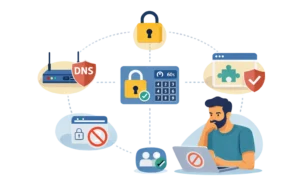
No single tool blocks everything. Layering closes the gaps that each method leaves open.
For Adults Blocking Content for Themselves
A setup you cannot take apart in thirty seconds is the whole point. Here is the stack, in the order it should go on.
- DNS filtering on the router or device. This is the foundation. It blocks adult content across every browser and costs nothing.
- A system-level tool with protection against tampering. This closes the app gap and stops the filter from being switched off from Task Manager or an uninstaller.
- A lock on top of it. A code lock, cooldown, friend approval, schedule, or fine is what holds the decision in place once the moment has passed.
- A browser extension, if you want one more step. It will not stop you on its own, but it puts one more visible action between you and the thing you decided against.
The same layering applies to other kinds of content. Blocking gambling sites on Windows follows the same order for anyone managing gambling-related concerns.
When a Simpler Setup Is Enough
Not everyone needs all of this. If adult content is an occasional annoyance rather than something that keeps pulling you back, a free DNS filter and a browser extension will probably hold, and there is no reason to pay for anything. Start there and see.
The layered setup above is for the other case: you have already tried the simple version, and you watched yourself take it apart. If that sounds familiar, the extra layers are not overkill. They are the part you were missing.
Blocking Adult Content on Windows Takes Layers
No single method blocks all adult content on Windows. DNS filtering is a good starting point because it works across every browser and needs no software. The hosts file offers system-level blocking but demands constant manual updates. Microsoft Family Safety filters content in Edge and is built for supervised accounts rather than for self-blocking. Browser extensions install in seconds and come out just as fast.
The setup that survives is the layered one. DNS filtering at the router or device level, a system-level tool for apps and tamper protection, and a lock that holds the decision after you have stopped agreeing with it.
For system-wide protection that covers websites and apps together, DigitalZen offers a Windows website and app blocker with built-in adult content categories. Set the filter once, choose a lock you would not easily talk your way past, and the setup holds on the evenings you would otherwise undo it. That is what permanent means in practice.
Frequently Asked Questions
Does DNS Filtering Block All Adult Content?
DNS filtering blocks known adult domains, but new sites appear constantly. It also does not block content on mixed-use sites like social media or Reddit. Use DNS filtering as one layer, not as your only protection.
Can I Block Adult Content Without Installing Software?
Yes. DNS filtering needs no software installation. You change your DNS settings to use a filtering provider like CleanBrowsing, OpenDNS, or Cloudflare. The hosts file also needs no software, but it does need manual maintenance.
What Is the Best Free Method to Block Adult Content on Windows?
DNS filtering is the best free method. It works across every browser and many apps. CleanBrowsing, OpenDNS FamilyShield, and Cloudflare for Families are all free, set up by changing DNS settings, and require no software installation.
How Do I Block Adult Content on Linux?
Linux can use DNS filtering, browser-based tools, and other system-level methods, though the setup is usually more technical than on Windows. A user with root access can ultimately remove anything, so the same logic applies there: the friction is what does the work. For step-by-step options, see our guide to blocking adult content on Linux.
How Do I Block Adult Content on All Browsers?
System-level tools like DigitalZen also block content across multiple browsers through supported extensions. DNS filtering works across every browser automatically. Microsoft Family Safety only filters content in Edge, so it leaves the others open.
What Is the Difference Between Blocking and Accountability Tools?
Blocking tools prevent access to adult content and stop it from loading. Accountability tools allow access but monitor activity and report it to a trusted partner. Blocking is about restriction. Accountability is about transparency. Plenty of people use both.
References
- https://cleanbrowsing.org/filters/
- https://support.microsoft.com/en-us/family-safety/filter-websites-and-searches-using-microsoft-family-safety
- https://support.microsoft.com/en-us/family-safety/family-safety-settings-enforced-on-adults
- https://windowsforum.com/threads/how-to-set-up-opendns-familyshield-on-windows-10-11-for-safe-browsing.343493/